3.2. Fiat Withdraw (Payee Creation and Withdrawal)
This process requires users to first add and get a payee approved before initiating a withdrawal.
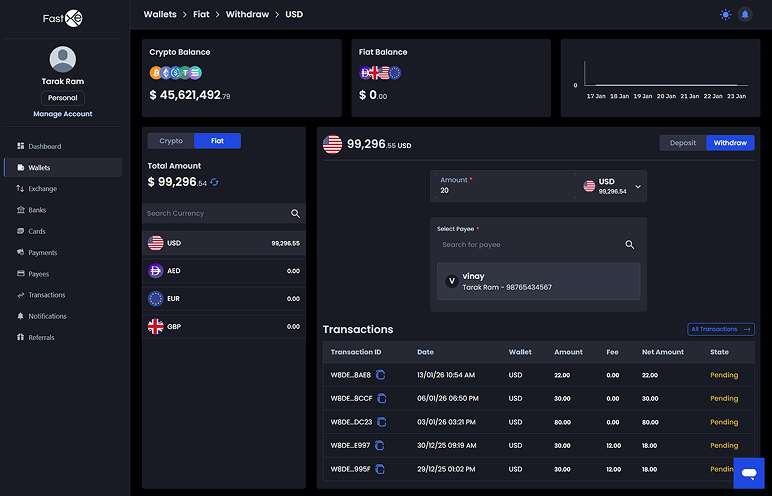
3.2.1. Customer Steps: Adding a Payee
3.2.1.1. Access "Add Pay": In the "Pay" section of the application, users select "Add Pay" for fiat transactions.
3.2.1.2. Enter Payee Name and Account Type: Users enter a favourite name for the payee and specify if it's a personal or business account.
3.2.1.3. Select First-Party or Third-Party: Users choose "first party" if it's their own account (details will auto-fill) or "third party" if it's another person's/entity's account (requiring manual entry of all details).
3.2.1.4. Business Account Details: For business accounts, users must enter the business name, currency, and correspondent details.
3.2.1.5. Provide Bank Details: All bank details, including address, bank country, and currency, must be provided.
3.2.1.6. Choose Payment Type: Based on the preceding selections, various payment types (e.g., bank account, instant pay) will be offered. Users select the appropriate one.
3.2.1.7. Input Bank Information: Users provide essential bank information such as the Bank Identifier Code (BIC), routing number, account type, bank name, branch code, address, city, and postal code.
3.2.1.8. ABA Information (for business accounts): For business accounts, ABA information (e.g., business registration number) is also required.
3.2.1.9. Save Payee: After completing all details, save the payee. The payee will be available for transactions after a 10-minute "cooling period" to allow for system approval.
3.2.2. Admin Steps: Payee Approval and Case Creation
3.2.2.1. Verify Payee Details: After a payee account is created, an admin needs to verify the details provided (correspondent details, address, payment, KYC).
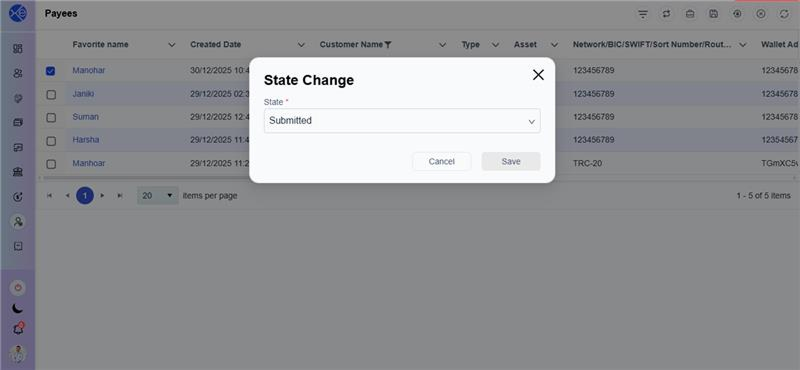
3.2.2.2. Approve or Reject Payee: The admin selects the payee record and changes its state to "approved" (or "rejected").
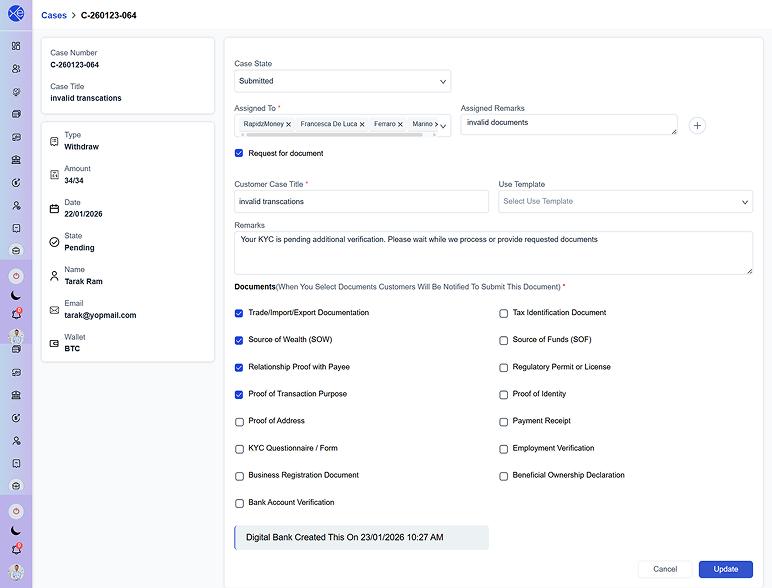
3.2.2.3. Create a Case (if necessary): If the admin requires more documents or clarification, they can create a case on the payee.
3.2.2.4. Case Details: The admin provides an internal case title, selects the payee, assigns it to a specific admin, and adds any relevant remarks.
3.2.2.5. Request Documents: The admin can request specific documents (e.g., Proof of Address, Proof of Identity) using predefined templates or custom remarks. The customer-facing case title and remarks are visible to the customer.
3.2.2.6. Customer Uploads Documents: Customers can upload documents (e.g., passport for proof of identity) and send messages within the case interface.
3.2.2.7. Admin Reviews & Approves Documents: Admins review uploaded documents, approve them, or request further clarification/documents. They can even upload sample documents to guide the customer.
3.2.2.8. Approve Case: Once all issues are resolved, the admin approves the case, making the payee fully available for transactions after the cooling period.
3.2.3. Customer Steps: Fiat Withdrawal Execution:
3.2.3.1. Enter Withdrawal Amount: Once the approved payee is ready, the customer enters the desired withdrawal amount, chooses the payee, and clicks "continue".
3.2.3.2. Review Withdrawal Summary: The system displays the withdrawal amount, effective fees, and the received amount, along with the payee's bank details.
3.2.3.3. Phone Verification: A phone verification code is sent to the user's registered mobile number. This code must be entered and verified.
3.2.3.4. Confirm Withdrawal: After confirmation, the transaction enters a pending status.
3.2.4. Admin Steps: Fiat Withdrawal Approval
3.2.4.1. Manual Review: An admin must manually review and approve the withdrawal transaction from their panel.
3.2.4.2. Approve Transaction: The admin selects the transaction, verifies details like fees and bank information, and changes its state to "approved".
3.2.4.3. Transaction Processing: Once approved, the amount is successfully processed, and the transaction status is updated to "approved" for the customer