Dashboard
Customer Dashboard Navigation and Features
The Dashboard serves as the central landing page for customers, providing an overview of financial status, accounts, and quick actions, accessible once account verification (KYC and KYB) is completed and approved.
1. Accessing and Reviewing Total Holdings
1.1. Access the Dashboard: Once the customer completes the KYC and KYB and everything is verified and good, they can directly see this dashboard.
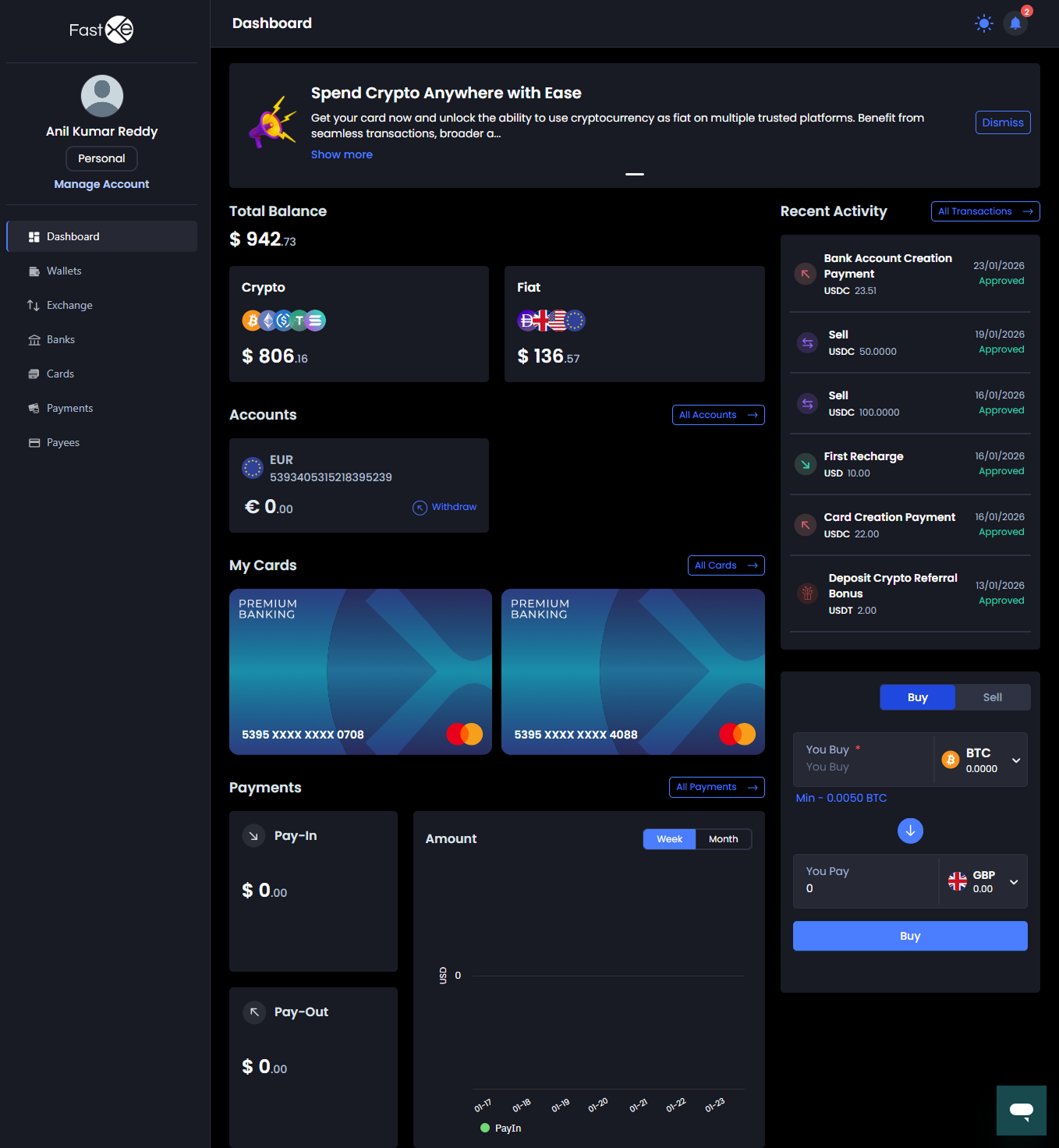
1.2. View Total Crypto Amount: Locate the top section where the total crypto amount is displayed. This amount is shown both in dollars and in the fiat amount in USD.
2. Reviewing Recent Transactions and History
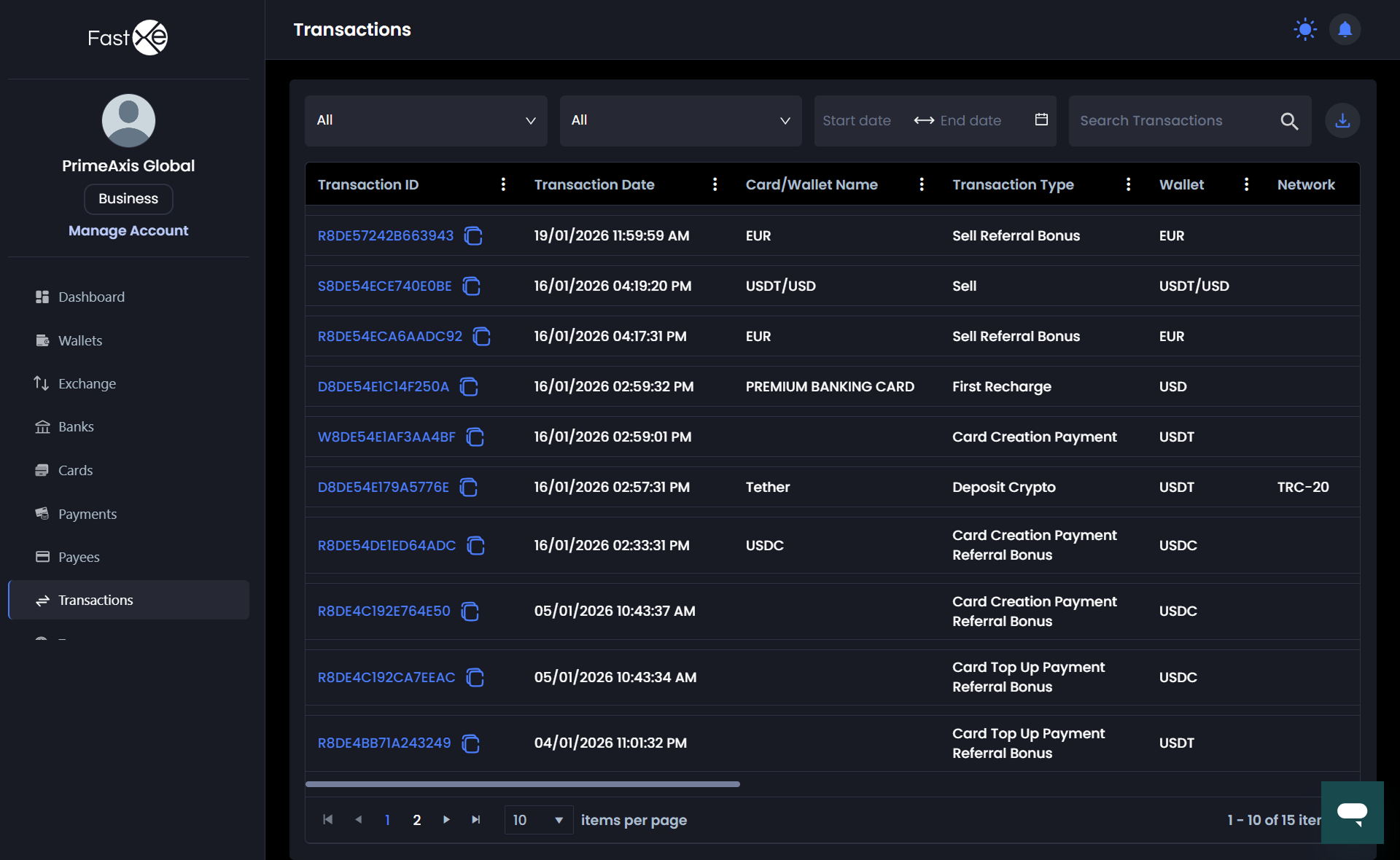
1.1 View Recent Transactions: Customers can see their recent transactions listed on the dashboard.
1.2 Access Full History: They can directly redirect to the main transactions grid using the provided link.
1.3 Check Quick Details: They can view quick template transaction details, such as the transaction date.
1.4 Download Records: Customers have the option to download the PDF of transaction details if they want to download them.
3. Monitoring Payments, Payouts, and Graphs
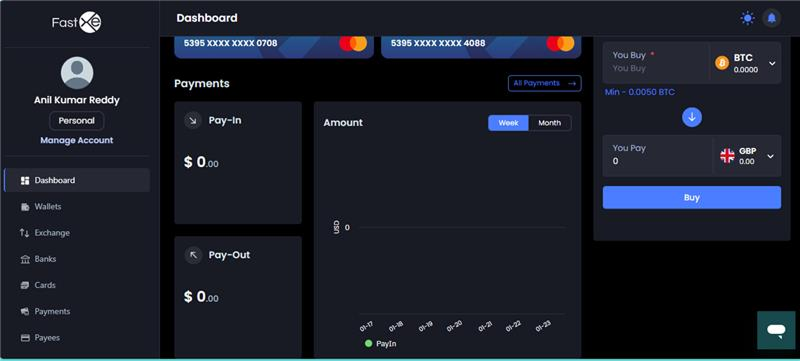
1.1 Review Financial Totals: The dashboard displays the total amount of payments and payouts.
1.2 Analyze Activity Graph: A related graph shows details, such as in which date how much amount the payouts came and how much was paid out.
4. Managing Bank Accounts and Cards
1.1 Review Bank Accounts (Accounts Section): In the "Accounts" section (located below the main summary), customers can see their bank accounts, including their own IBAN named accounts.
-
Initiate DMO: Customers can perform a DMO (Deposit Money Order) using a quick link provided here.
-
View All Accounts: They can directly move to the module showing all accounts using the redirection link.
1.2 Manage Cards (Cards Section): Customers can see any linked cards here. If they do not have cards, they can directly use the link to update (apply for) the cards.
5. Using Quick Action Links
The dashboard includes quick links that automatically direct users to the related module for immediate actions:
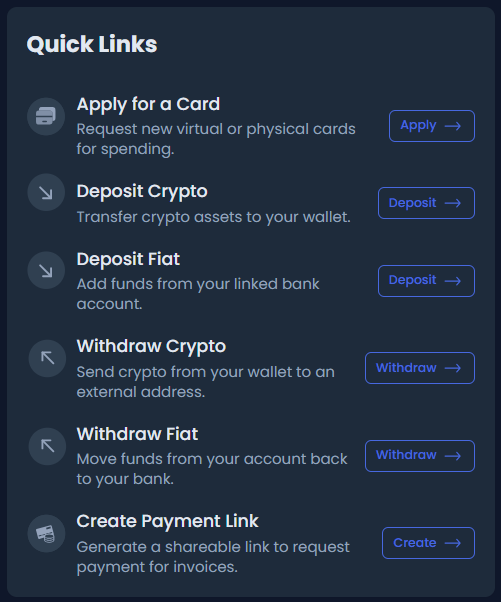
- Apply for Deposits: Use the quick link to apply for deposits.
- Manage Deposit Fees: Use the quick link related to the crypto deposit fee